

Convert video to MP3 online for free with our easy-to-use converter. Extract audio from compatible video files and save MP3 files to your device in simple steps.
Video to MP3 Converter Online Free
Convert your compatible video files into MP3 audio with a simple Video to MP3 converter. Whether you want to extract speech from a personal video, listen to a recorded lecture, or prepare an audio file for an editing project, converting video to MP3 can make your content easier to use. This guide explains how video-to-audio conversion works, how to choose suitable audio settings, and how to troubleshoot common problems. You will also learn about supported formats, mobile compatibility, audio quality, and file safety before converting your videos.
Select Your Video to Convert
A Video to MP3 converter extracts the audio track from a compatible video and saves it as an MP3 file. The exact process depends on the converter you use.
Before starting, check the tool’s supported formats and file-size limits. If your video contains important audio, keep a copy of the original file until you confirm that the converted MP3 plays correctly.
How to Convert Video to MP3?
Converting video to MP3 is straightforward when you use a compatible conversion tool. Follow these steps to extract audio from a video file.
Upload Your Video
Open your chosen Video to MP3 converter and select the video you want to process. Depending on the tool, you may be able to choose a file from your computer, phone, or tablet.
Check that the video format is supported. If the file fails to upload, confirm that it is accessible, is not corrupted, and meets the converter’s size restrictions.
Convert the Video to MP3
Choose MP3 as the output format and review any available audio-quality settings. Some converters allow you to select a bitrate, while others automatically use their default settings.
Start the conversion and wait until processing finishes. Conversion time depends on the video’s duration, file size, device, and the tool’s processing method.
Download Your Audio File
When conversion is complete, download the MP3 file if the tool provides a download option. Open it in a compatible audio player and check that the sound plays correctly.
Give the file a recognizable name so you can find it easily later. If the audio is incomplete or silent, try converting the original video again or check whether the source video contains an audible track.
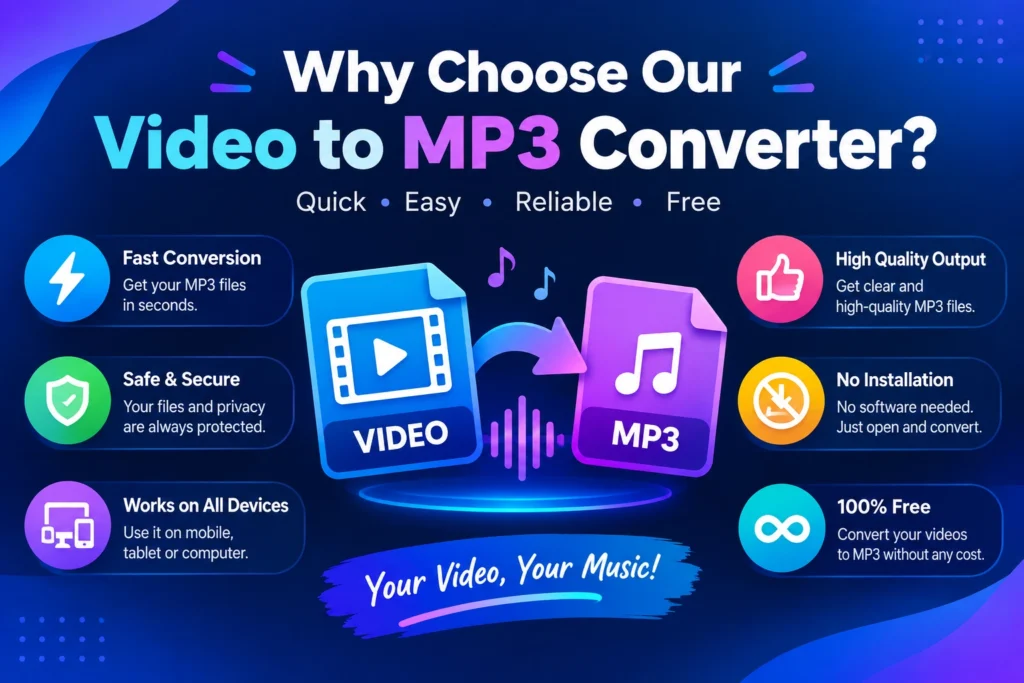
Why Choose Our Video to MP3 Converter?
A useful Video to MP3 converter should make audio extraction simple and explain its limitations clearly. Consider the following features when choosing a conversion tool.
Simple and Easy-to-Use Interface
A straightforward interface helps users complete conversions without unnecessary steps. Clear upload, conversion, and download controls make the process easier for beginners and experienced users alike.
Support for Compatible Video Formats
Video files come in different formats, including MP4, MOV, AVI, and MKV. However, not every converter supports every format. Check the supported-format list before uploading a file.
Audio Quality and MP3 Bitrate Options
Audio settings can affect the size and quality of an MP3 file. A converter with bitrate options gives users more control over the output, provided those settings are supported by the tool.
Fast and Reliable Processing
A reliable converter should handle compatible files consistently and provide clear feedback when processing succeeds or fails. Processing speed varies with file size, duration, connection quality, and available resources.
Browser-Based Conversion Without Installation
A browser-based Video to MP3 converter may allow you to convert files without installing desktop software. This can be convenient when working on different devices.
However, browser access does not automatically mean that conversion works offline. Online services may require an active internet connection to upload and process files.
Privacy-Focused File Processing
Before uploading a private video, review the service’s privacy policy and file-handling practices. Check whether files are uploaded to a server, how long they are retained, and whether deletion options are available.
Avoid uploading confidential recordings to services whose privacy practices you do not understand.
Supported Video and Audio Formats
A video-to-audio converter takes an audio track from a video and saves it in a different format. The available input and output formats depend on the conversion tool.
MP4 to MP3 Conversion
MP4 is a common video container that can hold video, audio, subtitles, and other data. MP3 is an audio format that stores sound without the video component.
An MP4 to MP3 converter extracts the audio track and creates an audio file. If you want to convert MP4 specifically, choose a tool that supports MP4 input and MP3 output.
Other Supported Video Formats
Other video formats may include MOV, AVI, and MKV. Support varies because different containers can use different audio and video codecs.
If a file is not accepted, check its extension and codec information. You may need to convert it to a compatible format before extracting its audio.
Understanding MP3 Audio Output
MP3 is widely supported by computers, smartphones, tablets, and many portable audio players. Its compressed format helps keep file sizes manageable.
The resulting MP3 contains audio rather than the original video. Video images, subtitles, and other visual elements are not preserved in the audio file.
How to Get High-Quality MP3 Audio
The quality of your converted audio depends on the original recording, the source audio track, and the conversion settings.
Understanding MP3 Bitrate
Bitrate describes how much audio data is stored per second. It is commonly measured in kilobits per second (kbps).
Higher MP3 bitrates generally preserve more audio detail than lower bitrates when comparing otherwise similar encodings. They also tend to create larger files.
For ordinary listening, a moderate bitrate may be sufficient. For music or audio that needs closer attention to detail, a higher bitrate can be useful.
Does Conversion Affect Audio Quality?
MP3 uses lossy compression, which means some audio information may be discarded. Converting an already compressed audio source into MP3 can introduce additional quality loss.
A higher output bitrate cannot restore sound details that were missing from the original recording. For the best practical result, start with a good-quality source and avoid unnecessary repeated conversions.
Choosing the Right Audio Settings
Consider how you plan to use the converted file.
Choose settings supported by your converter rather than assuming every online tool offers the same options.
What Can You Use Video to MP3 Conversion For?
Extracting audio can make certain types of content more convenient to access and organize.
Extracting Audio from Personal Videos
You may want to separate spoken words or background audio from a personal recording. Converting the audio can make it easier to listen without opening the video player.
Always retain the original video if you may need its visual information later.
Converting Lectures and Educational Recordings
Students and learners may use audio extracted from authorized lecture recordings to review spoken explanations while travelling or performing other tasks.
Keep in mind that diagrams, slides, demonstrations, and on-screen examples will not be included in an MP3 file.
Extracting Audio for Creative Projects
Editors, podcasters, and other creators may need an audio track from a video they own or have permission to use. Converting the track can help prepare it for further editing.
Check the source material’s licensing terms before reusing or distributing the audio.
Preparing Audio for Editing and Personal Listening
An MP3 file can be easier to organize, transfer, and play than a full video when you only need its sound. You can store audio files in folders, add descriptive filenames, and play them using a compatible media player.
Video to MP3 Converter for Different Devices
The conversion process is similar across devices, but the available features depend on your chosen tool and operating system.
Video to MP3 Converter for Android
Android users can select a compatible video from their device and use a browser-based converter or a suitable audio-conversion application.
Before installing an app, verify its source, review requested permissions, and check compatibility with your Android version. Avoid installing APK files from unknown sources.
Video to MP3 Converter for PC
On Windows computers and Macs, you can use a compatible browser-based converter or desktop software.
Online tools can be convenient for occasional conversions, while desktop applications may be preferable for frequent processing or offline use. Check supported formats, system requirements, and privacy practices before choosing software.
Using the Converter on iPhone and Other Compatible Devices
On an iPhone or iPad, conversion depends on the website or application and the file types it supports. You may need to select a video from the Files app or another supported location.
After conversion, save the MP3 to a location you can access easily. Some tools may have different upload or download restrictions on mobile devices.
Online vs. Offline Video to MP3 Conversion
Online and offline converters serve different needs. The right option depends on your internet access, file requirements, and preferred workflow.
Benefits of Online Conversion
An online converter can be convenient because it may work through a browser without requiring software installation. It can also be useful when switching between compatible devices.
However, server-based conversion normally requires an internet connection, and uploading files may raise privacy concerns for sensitive recordings.
When You May Need Offline Software
Desktop software or a compatible mobile application may be more suitable when you need to convert files without an active internet connection.
Before relying on offline conversion, confirm that the application can perform the entire process locally. Some apps require internet access for activation, file transfers, or specific features.
Video to MP3 Converter Without Internet
To convert a video without internet access, use a compatible application that supports local audio extraction. Download and install the software before going offline, then confirm that it does not require an online account or server processing for conversion.
Offline processing can reduce the need to upload private recordings to an external service. Nevertheless, check the application’s permissions and data practices rather than assuming every offline app is automatically secure.
Your Data, Our Priority
File privacy matters whenever you convert personal recordings, interviews, or other sensitive content. Before using any online converter, understand how the service handles uploaded files.
How Uploaded Files Are Processed
Some converters process files on their servers, while others perform processing in the browser or through installed software. These methods have different privacy implications.
Check the service’s documentation to understand which method it uses. Do not assume that a converter processes files locally just because it operates in a browser.
File Storage and Deletion Practices
Review whether the service retains uploaded videos and converted audio, how long files remain available, and whether users can delete them manually.
If you cannot find clear information about retention and deletion, avoid uploading sensitive material.
Tips for Protecting Personal Files
Common Video to MP3 Conversion Problems
If conversion fails, a few basic checks can often help identify the problem.
Video Upload Is Not Working
Check your internet connection if you are using an online converter. Confirm that the file exists, can be opened, and meets the tool’s size restrictions.
You can also try another supported video file to determine whether the issue is related to the original file.
Unsupported File Format
A converter may reject a file because it does not recognize the container or its audio codec. Check the tool’s supported formats and inspect the file’s actual format if necessary.
Changing a filename extension alone does not convert the file. Use a compatible conversion method when the source format is unsupported.
MP3 Audio Quality Is Poor
Poor output quality may result from a low-quality source, aggressive compression, or unsuitable settings. Try a higher supported bitrate if available and begin with the best-quality source you have.
Remember that increasing the bitrate cannot restore information already lost from the original recording.
Converted File Has No Sound
The source video may lack an audio track, or the converter may have failed to extract it correctly. Play the original video and confirm that its audio works.
If the source contains sound, try converting it again with a compatible tool.
MP3 Download Is Not Starting
Check your browser’s download settings, available storage space, and internet connection. Confirm that the conversion has finished and that the download link is still available.
If necessary, repeat the conversion or use another compatible browser.
Video to MP3 Converter FAQs
Conclusion
A Video to MP3 converter can help you separate audio from compatible videos for personal listening, educational review, and creative projects. By choosing a suitable source file, understanding MP3 quality settings, and checking the converter’s supported formats, you can avoid many common conversion problems.